How To Make A Distance Meter Using Ultrasonic Sensor

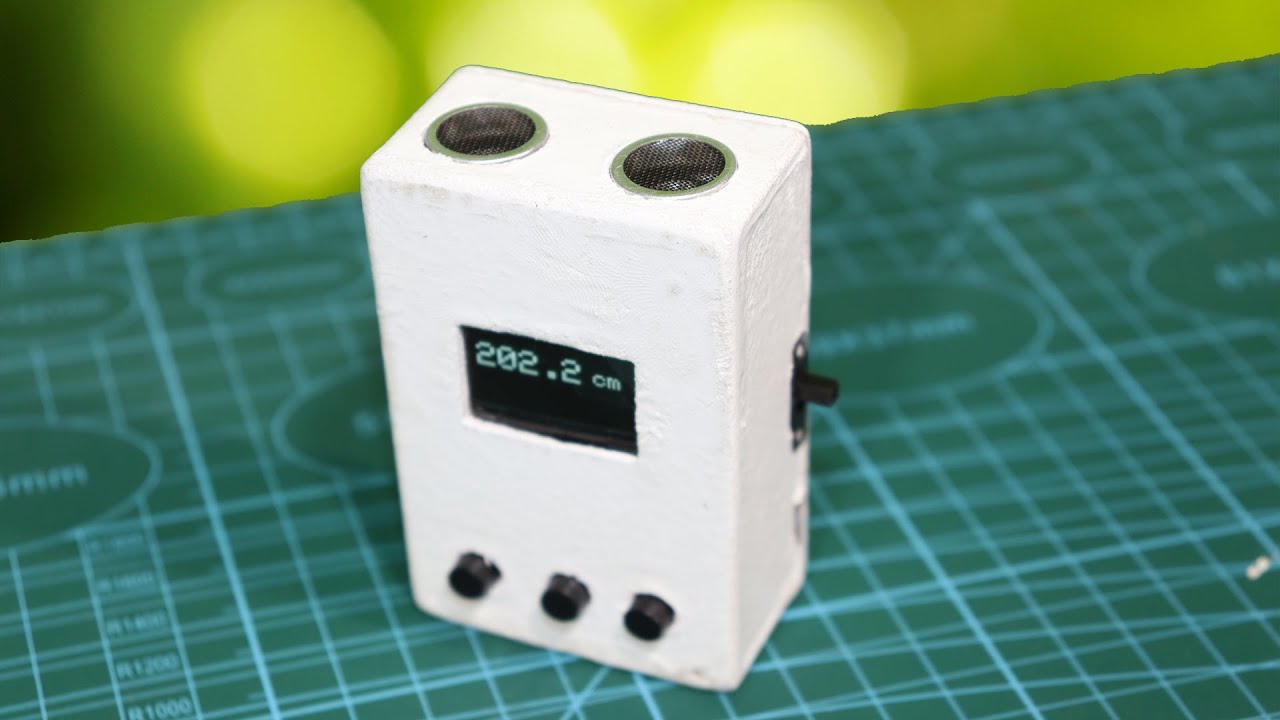
Hello friends, this is my new project using ultrasonic sensor. Actually this is distance meter which show the result on centimeter, Inch, meter also pause and reset option using button.

Components :

  1. Arduino Nano :
  2. HC-SR04 Ultrasonic Sensor
  3. TP-4056 Charging Module
  4. Lithium Battery
  5. SSD 1306 Module
  6. Push Switch
  7. 10K resistor
  8. ON-OFF Switch
  9. MDF Board

Diagram :

Code:

#include <SPI.h>
#include <Wire.h>
#include <Adafruit_GFX.h>
#include <Adafruit_SSD1306.h>

int state=0;
int sense=0;

#define trigPin 13
#define echoPin 12

const int buttonPin1 = 3;
const int buttonPin2 = 4;
const int buttonPin3 = 5;

#define SCREEN_WIDTH 128 // OLED display width, in pixels
#define SCREEN_HEIGHT 64 // OLED display height, in pixels

// Declaration for an SSD1306 display connected to I2C (SDA, SCL pins)
#define OLED_RESET     6 // Reset pin # (or -1 if sharing Arduino reset pin)
Adafruit_SSD1306 display(SCREEN_WIDTH, SCREEN_HEIGHT, &Wire, OLED_RESET);
int buttonState = 0;  
int buttonState2 = 0;
int buttonState3 = 0;  

void setup() {
  Serial.begin (9600);
  pinMode(trigPin, OUTPUT);
  pinMode(echoPin, INPUT);
  pinMode(buttonPin1, INPUT);
  pinMode(buttonPin2, INPUT);
  pinMode(buttonPin3, INPUT);
  display.begin(SSD1306_SWITCHCAPVCC, 0x3C); //initialize with the I2C addr 0x3C (128x64)
  

     display.setCursor(2,0);  //oled display
  display.setTextSize(1);
  display.setTextColor(WHITE);
  display.println("Distance");
  display.println("Meter");
  delay(5000);
  display.clearDisplay();
  

}

void loop() {
  float duration, distance;

  if(sense==0){
  digitalWrite(trigPin, LOW);  //PULSE ___|---|___
  delayMicroseconds(2); 
  digitalWrite(trigPin, HIGH);
  delayMicroseconds(10); 
  digitalWrite(trigPin, LOW);
  
  duration = pulseIn(echoPin, HIGH);
  }
  
   if(state==0){
  distance = (duration/2) / 29.1;
  display.setCursor(2,10);  //oled display
  display.setTextSize(3);
  display.setTextColor(WHITE);
  if(distance<100){
  display.println(distance);
   }
   else{
    display.println(distance,1);
   }
   }
   if(state==1){
  distance = (duration/2) / 73.914;
    display.setCursor(2,10);  //oled display
  display.setTextSize(3);
  display.setTextColor(WHITE);
  if(distance<100){
  display.println(distance);
   }
   else{
    display.println(distance,1);
   }
   }
   if(state==2){
  distance = (duration/2) / 29.1;
  distance=distance/100;
      display.setCursor(2,10);  //oled display
  display.setTextSize(3);
  display.setTextColor(WHITE);
  display.println(distance);
   }

  
  display.setCursor(100,15);
  display.setTextSize(2);
  
  if(state==0){
  display.println("cm");
  }
  if(state==1){
  display.println("in");
  }
  if(state==2){
  display.println("m");
  }
  
  display.display();

  delay(500);
  display.clearDisplay();
 
  
  buttonState = digitalRead(buttonPin1);
  buttonState2 = digitalRead(buttonPin2);
  if (buttonState2 == HIGH) {
   sense=1;
  }
  buttonState3 = digitalRead(buttonPin3);
   if (buttonState3 == HIGH) {
   sense=0;
  }

  // check if the pushbutton is pressed. If it is, the buttonState is HIGH:
  if (buttonState == HIGH) {
   
    if(state<=2){
      state=state+1;
    }
    else{
      state=0;
    }
  }
  Serial.println(distance);//debug
  Serial.println(state);//debug
  Serial.println(sense);//debug

}

How To Make A Distance Meter Using Ultrasonic Sensor

Hello friends, this is my new project using ultrasonic sensor. Actually this is distance meter which show the result on centimeter, Inch, meter also pause and reset option using button.

Components :

  1. Arduino Nano :
  2. HC-SR04 Ultrasonic Sensor
  3. TP-4056 Charging Module
  4. Lithium Battery
  5. SSD 1306 Module
  6. Push Switch
  7. 10K resistor
  8. ON-OFF Switch
  9. MDF Board

Diagram :

Code:

#include <SPI.h>
#include <Wire.h>
#include <Adafruit_GFX.h>
#include <Adafruit_SSD1306.h>

int state=0;
int sense=0;

#define trigPin 13
#define echoPin 12

const int buttonPin1 = 3;
const int buttonPin2 = 4;
const int buttonPin3 = 5;

#define SCREEN_WIDTH 128 // OLED display width, in pixels
#define SCREEN_HEIGHT 64 // OLED display height, in pixels

// Declaration for an SSD1306 display connected to I2C (SDA, SCL pins)
#define OLED_RESET     6 // Reset pin # (or -1 if sharing Arduino reset pin)
Adafruit_SSD1306 display(SCREEN_WIDTH, SCREEN_HEIGHT, &Wire, OLED_RESET);
int buttonState = 0;  
int buttonState2 = 0;
int buttonState3 = 0;  

void setup() {
  Serial.begin (9600);
  pinMode(trigPin, OUTPUT);
  pinMode(echoPin, INPUT);
  pinMode(buttonPin1, INPUT);
  pinMode(buttonPin2, INPUT);
  pinMode(buttonPin3, INPUT);
  display.begin(SSD1306_SWITCHCAPVCC, 0x3C); //initialize with the I2C addr 0x3C (128x64)
  

     display.setCursor(2,0);  //oled display
  display.setTextSize(1);
  display.setTextColor(WHITE);
  display.println("Distance");
  display.println("Meter");
  delay(5000);
  display.clearDisplay();
  

}

void loop() {
  float duration, distance;

  if(sense==0){
  digitalWrite(trigPin, LOW);  //PULSE ___|---|___
  delayMicroseconds(2); 
  digitalWrite(trigPin, HIGH);
  delayMicroseconds(10); 
  digitalWrite(trigPin, LOW);
  
  duration = pulseIn(echoPin, HIGH);
  }
  
   if(state==0){
  distance = (duration/2) / 29.1;
  display.setCursor(2,10);  //oled display
  display.setTextSize(3);
  display.setTextColor(WHITE);
  if(distance<100){
  display.println(distance);
   }
   else{
    display.println(distance,1);
   }
   }
   if(state==1){
  distance = (duration/2) / 73.914;
    display.setCursor(2,10);  //oled display
  display.setTextSize(3);
  display.setTextColor(WHITE);
  if(distance<100){
  display.println(distance);
   }
   else{
    display.println(distance,1);
   }
   }
   if(state==2){
  distance = (duration/2) / 29.1;
  distance=distance/100;
      display.setCursor(2,10);  //oled display
  display.setTextSize(3);
  display.setTextColor(WHITE);
  display.println(distance);
   }

  
  display.setCursor(100,15);
  display.setTextSize(2);
  
  if(state==0){
  display.println("cm");
  }
  if(state==1){
  display.println("in");
  }
  if(state==2){
  display.println("m");
  }
  
  display.display();

  delay(500);
  display.clearDisplay();
 
  
  buttonState = digitalRead(buttonPin1);
  buttonState2 = digitalRead(buttonPin2);
  if (buttonState2 == HIGH) {
   sense=1;
  }
  buttonState3 = digitalRead(buttonPin3);
   if (buttonState3 == HIGH) {
   sense=0;
  }

  // check if the pushbutton is pressed. If it is, the buttonState is HIGH:
  if (buttonState == HIGH) {
   
    if(state<=2){
      state=state+1;
    }
    else{
      state=0;
    }
  }
  Serial.println(distance);//debug
  Serial.println(state);//debug
  Serial.println(sense);//debug

}

Search

Popular Posts

  • DIY Components Tester | Test Resistors, Capacitors, Transistors, and More!

    Learn how to make a DIY components tester at home! This project helps you test electronic components like resistors, capacitors, diodes, transistors, and more with ease. Follow this step-by-step guide to build your own affordable and reliable tester using basic tools and components. Perfect for electronics enthusiasts, students, and hobbyists looking to troubleshoot or organize…

  • How To Make Wireless RGB LED Matrix Text Display
    How To Make Wireless RGB LED Matrix Text Display

    Create your own RGB LED Matrix Text Display with this comprehensive DIY tutorial! Perfect for tech enthusiasts and hobbyists, this video will guide you through each step, from selecting the right components to programming and assembling your LED matrix. Watch as we break down the entire process in an easy-to-understand way, helping you bring vibrant,…

  • Amazing Idea Using Lizol Empty Bottle And RGB LED Strip
    Amazing Idea Using Lizol Empty Bottle And RGB LED Strip

    Hello Friends, This is cool projects for your home. This RGB LED light gives you multiple color effects in your room. In this projects I used WS2812B LED strip to control all led with single wire. This is very simple to make. Just follow all the step and make your own RGB led light Diagram…

Categories

error:
0
    0
    Your Cart
    Your cart is emptyReturn to Shop